¶ Introduction
Alongside the well-known Repeater and Intruder rooms, Burp Suite also has several slightly more obscure modules built-in: these are what we will be covering in this room.
Specifically, we will be looking at the Decoder, Comparer and Sequencer tools. These allow us to: work with encoded text; compare sets of text; and analyse the randomness of captured tokens, respectively. Being able to perform these relatively straightforward tasks directly within Burp Suite can save a lot of time, so it is well worth the time spent learning to use these modules efficiently.
¶ Decoder
The Burp Suite Decoder module allows us to manipulate data. As the name suggests, we can decode information that we capture during an attack, but we can also encode data of our own, ready to be sent to the target. Decoder also allows us to create hashsums of data, as well as providing a Smart Decode feature which attempts to decode provided data recursively until it is back to being plaintext (like the "Magic" function of Cyberchef).
Let's select the Decoder tab from the top menu and take a look at the options available:

This interface offers us a number of options.
- The box on the left is where we would paste or type text to be encoded or decoded. As with most other modules of Burp Suite, we can also send data here from other sections of the framework by right-clicking and choosing Send to Decoder.
- We have the option to select between treating the input as text or hexadecimal byte values at the top of the list on the right.
- Further down the list, we have dropdown menus to Encode, Decode or Hash the input.
- Finally, we have the "Smart Decode" feature, which attempts to decode the input automatically.

As we add data into the input field, the interface will duplicate itself to contain the output of our transformation. We can then choose to operate on this using the same options:

¶ Encoding/Decoding
Decoding/Encoding Methods:
Let's take a closer look at the manual encoding and decoding options. These are the same whether we choose the decoding or encoding menu:

- Plain: Plaintext is what we have before performing any transformations.
- URL: URL encoding is used to make data safe to transfer in the URL of a web request. It involves exchanging characters for their ASCII character code in hexadecimal format, preceded by a percentage symbol (
%). Url encoding is an extremely useful method to know for any kind of web application testing.
For example, let's encode the forward-slash character (/). The ASCII character code for a forward slash is 47. This is "2F" in hexadecimal, making the URL encoded forward-slash%2F. We can confirm this with Decoder by typing a forward slash in the input box, then selectingEncode as->URL:

- HTML: Encoding text as HTML Entities involves replacing special characters with an ampersand (
&) followed by either a hexadecimal number or a reference to the character being escaped, then a semicolon (;). For example, a quotation mark has its own reference:". When this is inserted into a webpage, it will be replaced by a double quotation mark ("). This encoding method allows special characters in the HTML language to be rendered safely in HTML pages and has the added bonus of being used to prevent attacks such as XSS (Cross-Site Scripting).
When we use the HTML option in Decoder, we can encode any character as its HTML escaped format or decode captured HTML entities. For example, to decode the quotation mark we looked at before, we type in the encoded variant then chooseDecode as->HTML:

- Base64: Another widely used encoding method, base64 is used to encode any data in an ASCII-compatible format. It was designed to take binary data (e.g. images, media, programs) and encode it in a format that would be suitable to transfer over virtually any medium. How this works under the hood is not important at this point; however, if you are interested, you can read the maths behind it here.
- ASCII Hex: This option converts data between ASCII representation and hexadecimal representation. For example, the word "ASCII" can be converted into the hexadecimal number "4153434949". Each letter in the original data is taken individually and converted from numeric ASCII representation into hexadecimal. For example, the letter "A" in ASCII has a decimal character code of 65. In hexadecimal, this is 41. Similarly, the letter "S" can be converted to hexadecimal 53, and so on.
- Hex, Octal, and Binary: These encoding methods all apply only to numeric inputs. They convert between decimal, hexadecimal, octal (base eight) and binary.
- Gzip: Gzip provides a way to compress data. It is widely used to reduce the size of files and pages before they are sent to your browser. Smaller pages mean faster loading times, which is highly desirable for developers looking to increase their SEO score and avoid annoying their customers. Decoder allows us to manually encode and decode gzip data, although this can be hard to process as it is often not valid ASCII/Unicode. For example:

We can layer any of these on top of each other. For example, we could take a phrase ("Burp Suite Decoder"), convert it to ASCII Hex, and then into octal:

When combined, these methods give us a great deal of control over the data that we are encoding or decoding.
As you may have noticed from the examples, each encoding/decoding method is colour coded to allow us to quickly and easily see what transformation has been applied.
Hex Format:
Inputting data in ASCII format is great, but sometimes we need to be able to edit our input byte-by-byte. For this, we can use "Hex View" by choosing "Hex" above the decoding options:

This setting allows us to view and edit our text in hexadecimal byte format -- a very useful trick if we are working with binary files or other non-ASCII data.
Smart Decode:
Finally, let's take a look at the "Smart Decode" option. This feature of Decoder attempts to automatically decode encoded text. For example, Burp Suite, is automatically recognised as being HTML encoded and is automatically decoded accordingly:

This feature is far from perfect, but it can be very useful for quickly decoding chunks of unknown data.
¶ Hashing
In addition to its Encoding/Decoding functionality, Decoder also gives us the option to generate hashsums for our entered data.
Theory:
Hashing is a one-way process that is used to transform data into a unique signature. To be a hashing algorithm, the resulting output must be impossible to reverse. A good hashing algorithm will ensure that every piece of data entered will have a completely unique hash. For example, using the MD5 algorithm to generate a hashsum for the text "MD5sum" returns 4ae1a02de5bd02a5515f583f4fca5e8c. Using the same algorithm to generate a hashsum for "MD5SUM" gives a completely different hash, despite the similarities of the input: 13b436b09172400c9eb2f69fbd20adad. For this reason, hashes are frequently used to verify the integrity of files and documents, as even a very small change to the file will result in the hashsum changing significantly.
Note: the MD5 algorithm is deprecated and should not be used for modern applications.
Equally, hashes are also used to securely store passwords as (due to the one-way hashing process meaning that the hashes can never be reversed) the passwords will be (relatively) secure even if the database is leaked. When a user creates a password, it is hashed and stored by the application. When the user tries to log in, the application will then hash the password they submit and check it against the stored hash; if the hashes match, then the password was correct. When using this methodology, an application never has to store the original (plaintext) password.
Hashing in Decoder:
Decoder allows us to generate hashsums for data directly within Burp Suite; this works in much the same way as the encoding/decoding options we saw in the previous task. Specifically, we click on the "Hash" dropdown menu and select an algorithm from the list:
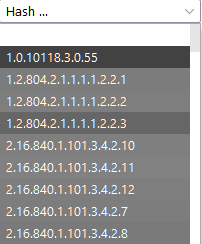
Note: this is a significantly longer list than with the encoding/decoding algorithms -- it is well worth scrolling down the list to see the many hashing algorithms available.
Continuing our earlier example, let's enter "MD5sum" into the input box, then scroll down the list until we find "MD5". Applying this sends us automatically into the Hex view:
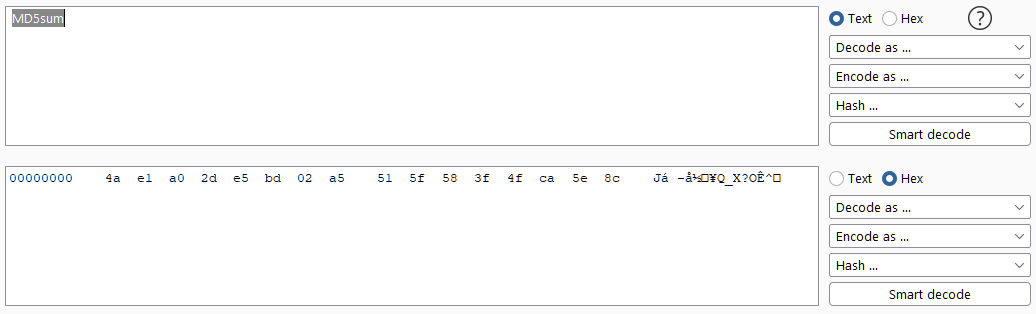
This is because the output of a hashing algorithm does not return pure ASCII/Unicode text. As such, it is common to take the resultant output of the algorithm and turn it into a hexadecimal string; this is the form of "hash" that you may be familiar with.
Let's finish this by applying an "ASCII Hex" encoding to the hashsum to create the neat hex string from our initial example.
The full process can be seen here:

¶ Comparer
As the name suggests, Comparer allows us to compare two pieces of data, either by ASCII words or by bytes.
Let's start by taking a look at the interface:
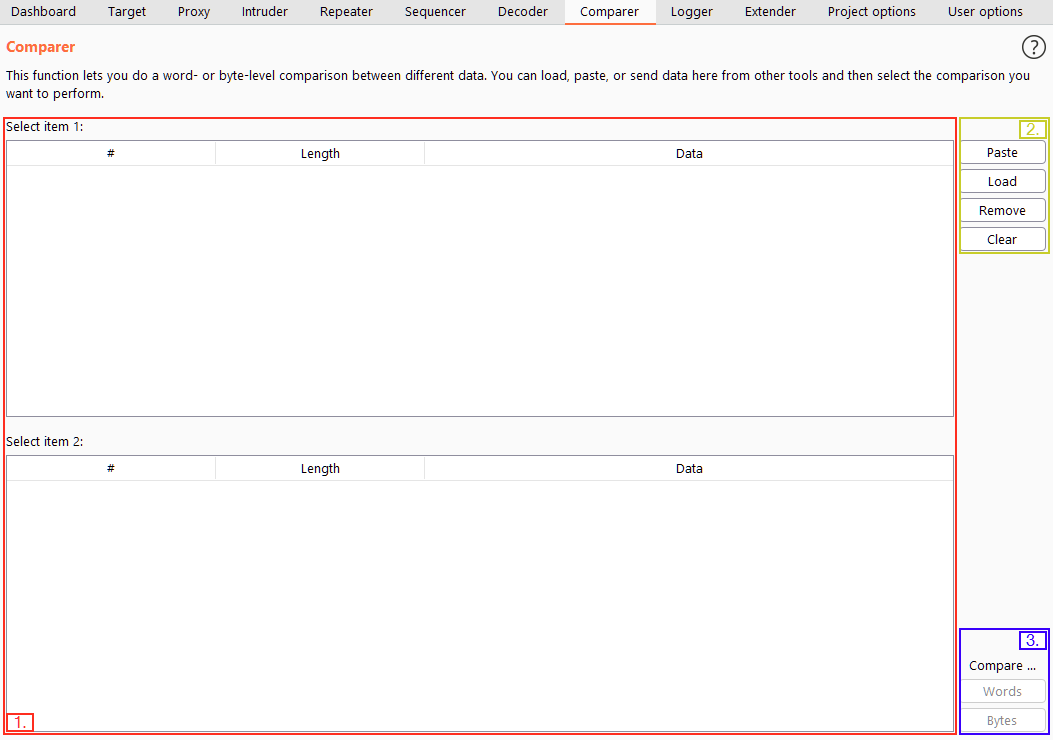
This interface can be split into three main parts:
- On the left, we have the items being compared. When we load data into Comparer, it will appear as rows in these tables -- we would then select two datasets to compare.
- On the upper right, we have options for pasting data in from the clipboard (Paste), loading data from a file (Load), removing the current row (Remove) and clearing all datasets (Clear).
- Finally, on the bottom right, we have the option to compare our datasets by either words or bytes. Don't worry about which of these buttons you select as this can be changed later on. These are the buttons we click when we are ready to compare the data we have selected.
As with most Burp Suite modules, we can also load data into Comparer from other modules by right-clicking and choosing "Send to Comparer".
When we have loaded data in to compare, we get a pop-up window showing us the comparison:

Once again, there are three distinct parts to this window:
- The compared data takes up most of the window; this can be viewed in either text or hex format. The initial format is determined by whether we chose to compare by words or by bytes in the previous window, but this can be overwritten by using the buttons above the comparison boxes.
- The key for comparisons is at the bottom left, showing which colours denote modified, deleted, and added data between the two datasets.
- At the bottom right of the window is the "Sync views" checkbox. When selected, this means that both sets of data will sync formats -- i.e. if you change one of them into Hex view, the other will do the same to match.
We are given the total number of differences found in the window title.
¶ Sequencer
Sequencer is one of those tools that rarely ever gets used in CTFs and other lab environments but is an essential part of a real-world web app penetration test.
In short, Sequencer allows us to measure the entropy (or randomness, in other words) of "tokens" -- strings that are used to identify something and should, in theory, be generated in a cryptographically secure manner. For example, we may wish to analyse the randomness of a session cookie or a Cross-Site Request Forgery (CSRF) token protecting a form submission. If it turns out that these tokens are not generated securely, then we can (in theory) predict the values of upcoming tokens. Just imagine the implications of this if the token in question is used for password resets...
Let's start, as ever, by taking a look at the Sequencer interface:

There are two main methods we can use to perform token analysis with Sequencer:
- Live capture is the more common of the two methods -- this is the default sub-tab for Sequencer. Live capture allows us to pass a request to Sequencer, which we know will create a token for us to analyse. For example, we may wish to pass a POST request to a login endpoint into Sequencer, as we know that the server will respond by giving us a cookie. With the request passed in, we can tell Sequencer to start a live capture: it will then make the same request thousands of times automatically, storing the generated token samples for analysis. Once we have accumulated enough samples, we stop Sequencer and allow it to analyse the captured tokens.
- Manual load allows us to load a list of pre-generated token samples straight into Sequencer for analysis. Using Manual Load means we don't have to make thousands of requests to our target (which is both loud and resource intensive), but it does mean that we need to obtain a large list of pre-generated tokens!
¶ Live Capture
The best way to learn is by doing. Let's learn to use the Sequencer live capture by performing entropy analysis on the anti-bruteforce token used in the admin login form.
We will start by capturing a request to http://MACHINE_IP/admin/login/ in the Proxy. Right-click on the request and choose "Send to Sequencer":
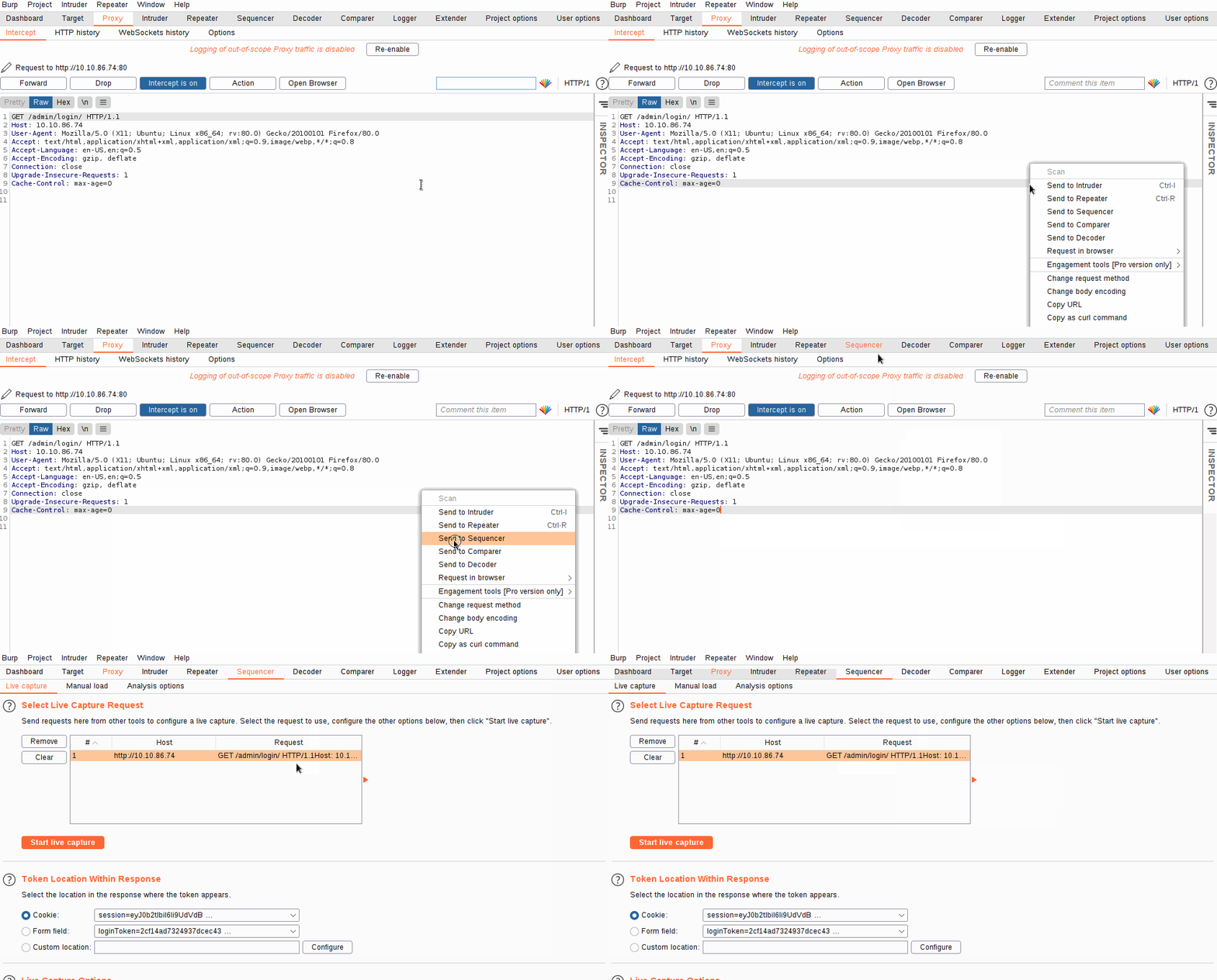
Notice in the "Token Location Within Response" section we have the option to select between Cookie, Form field, and Custom location. In this instance, we are testing the loginToken, so select the radio button for "Form field":

We can safely leave all other options at default in this instance, so let's go ahead and click the "Start live capture" button!
A new window will now pop up telling us that we are performing a live capture and showing us how many tokens we have so far captured. We need to wait until we have a reasonable number of tokens captured (around 10,000 should do); the more tokens we have, the more accurate our analysis.
Once you have around 10,000 tokens captured, click "Pause", then select the "Analyze now" button:

Note: We could also have chosen to "Stop" the capture; however, by choosing to pause it instead, we leave the option resume the capture open, should the report not have enough samples to calculate the entropy of the token accurately.
If we wanted to receive periodic updates on the analysis, we could also have checked the "Auto analyze" checkbox. Doing this would tell Burp to perform the entropy analysis every 2000 requests or so, giving us frequent updates that will get progressively more accurate as more samples are loaded into Sequencer.
It is worth noting that at this point, we could also choose to copy or save the captured tokens for further analysis later on.
Having clicked the "Analyze now" button, Burp will proceed to analyse the entropy of our token and generate a report.
¶ Analysis
Now that we have a report for the entropy analysis of our token, it's time to analyse it!
Burp performs dozens of tests on the token samples that it captured. We won't be looking at all of these as it would take far more than a single task to do so (and it would get very maths-intensive to break each technique apart). Instead, we will focus on the generated summary; however, you are encouraged to look through all of the test results for yourself.
The generated entropy analysis report is split into four primary sections -- the first of these being a summary of the results:

The summary gives us an overall result; the effective entropy; an analysis of the reliability of the results; and a summary of the sample taken.
Collectively, these will often be enough to determine whether the token is generated safely or not; however, in some instances, we may need to have a look at the test results directly -- this can be done in the "Character-level analysis" and "Bit-level analysis" tabs. As mentioned previously, we will not be going into these to avoid delving into the depths of statistical-analysis mathematics in a beginner-friendly room. In short, with an estimated 1% chance of being incorrect based on the data provided (Significance level: 1%), Burp has calculated that the effective entropy of our token should be around 117 bits. This is an excellent level of entropy to have in a secure token, although it should be noted that it is impossible to say with absolute assurance that this calculation is entirely accurate, simply due to the nature of the topic.